Change tabular server
This section details the steps for connecting an existing Power BI report to an alternative tabular server or database. This can be useful when connecting live reports to another database for testing or development purposes.
Before you start
Parameters
The following values will be provided by Pro-Sapien:
- {Tabular-Server-Address}
- {Tabular-Model-Name}
Change tabular server
Copy PBIX file (optional)
info
It is recommend that the PBIX file name includes a reference to the purpose or environment e.g. "UAT". The PBIX file name is the default name that will be applied when the report is published to Power BI Service.
- Make a copy of the report PBIX file
- Rename the copy to clearly identify the purpose or environment e.g. add "UAT" to the name
Open PBIX file
- Open PBIX file in Power BI Desktop
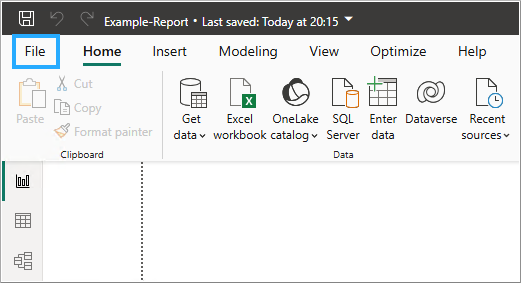
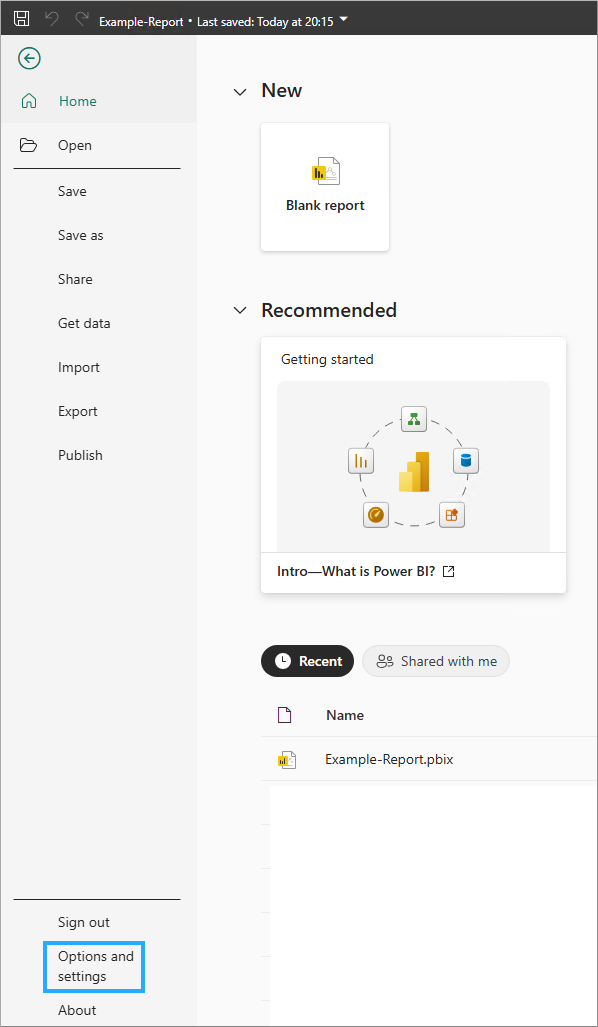
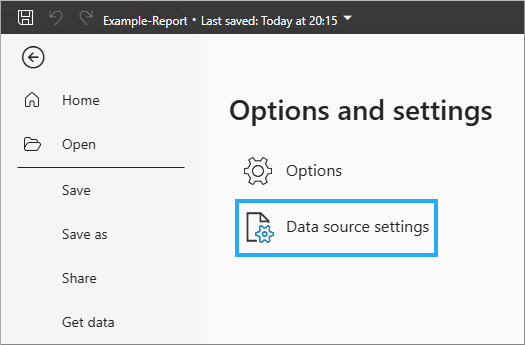
- Navigate to File -> Options and settings -> Data source settings
File
Options and settings (bottom left)
Data source settings
Update server and database
- Server: update with {Tabular-Server-Address}
- Database: update with {Tabular-Model-Name}
- Type: select Connect live
- Click on OK or Connect

Authenticate if prompted
- Click on Microsoft Account
- Click on Sign in (if not already signed-in) and sign-in using company credentials

Connect
- Click on OK or Connect

Select server if prompted
- Click on the server in the Navigator window
- Click on OK

Refresh
- Click on Refresh in the toolbar to ensure all report data is refreshed
