Change display language
This section details the steps for changing your display language in Microsoft 365.
Pro-Sapien forms will be displayed in your selected Microsoft 365 display language if a translation has been configured.
My account
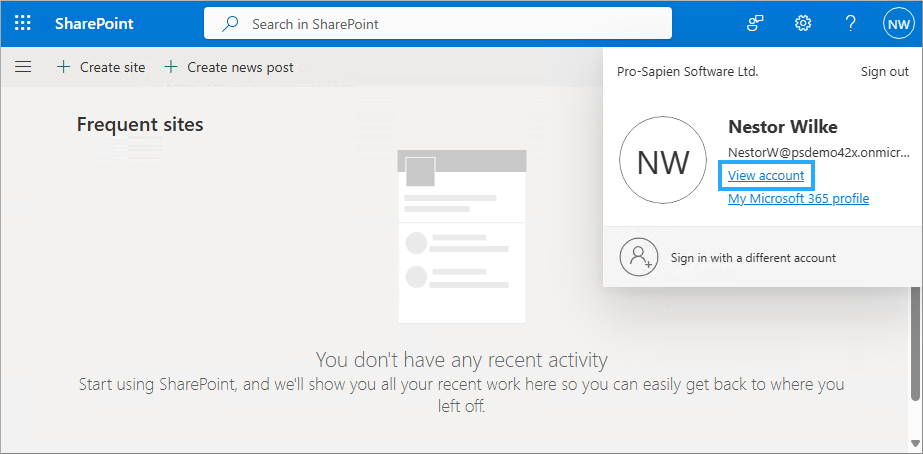
- Login to any Microsoft 365 app e.g. SharePoint
- Click on the user account icon in the top right with your account photo or initials
- Click View account
Security & privacy
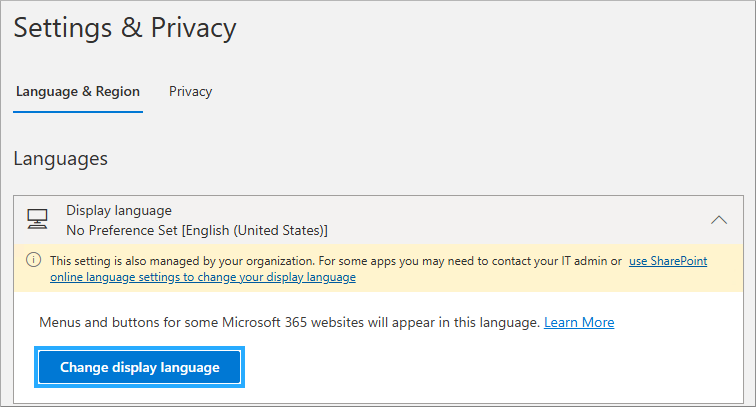
- Click on Settings & Privacy

- Expand the Display language section
- Click on Change display language
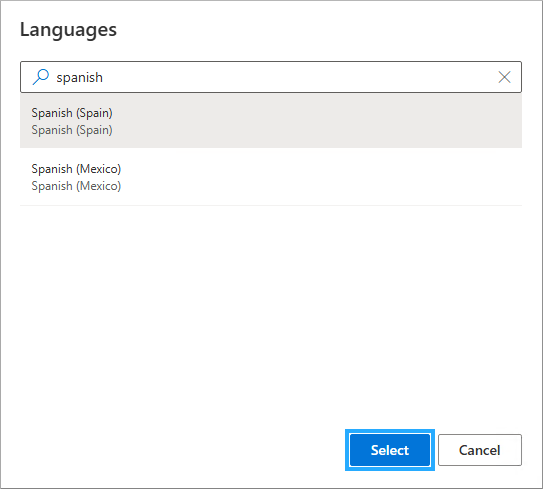
- Search for and select the correct language
- Click on Select
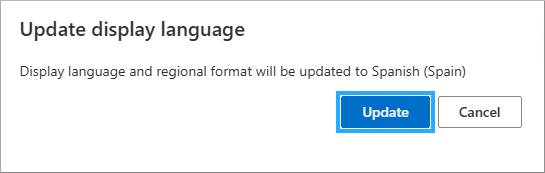
- Click on Update to confirm
- Click on Yes, sign out now (displayed in the new language)
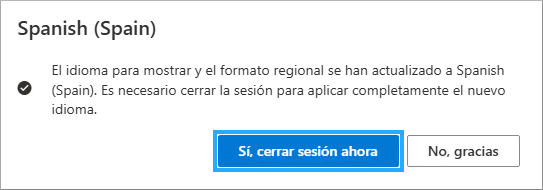
info
After next sign-in, it will take up to 1 hour for Pro-Sapien forms to be displayed in your selected language.