Update Entra ID app registrations
This section details the steps required to create the Entra ID App Registration. A registration is required for each instance of Pro-Sapien.
Before you start
Prerequisite stages
Confirm the following stages have been completed.
Parameters
The following values from the parameters workbook are required:
- {Entra-App-Name}
- {Web-App-Domain}
Permission required
Use an account with the following permissions:
- Global Administrator
Entra ID App registration
Update the existing Entra ID App Registration in Azure Portal for each Pro-Sapien instance.
A registration should already exist for each instance:
- UAT (test)
- Production (live)
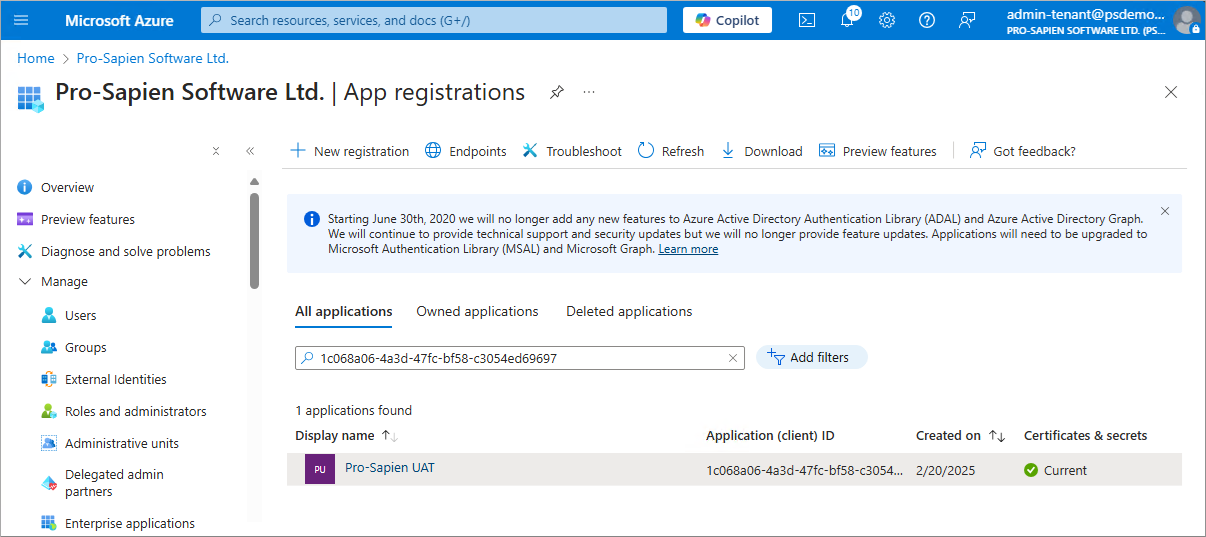
Find existing registration
- Navigate to Azure Portal -> Microsoft Entra ID -> App Registrations
- Search for the {Entra-App-ClientId} or {Entra-App-Name}
- Click on the azure app
API permissions
SharePoint
- Navigate to the API permissions page
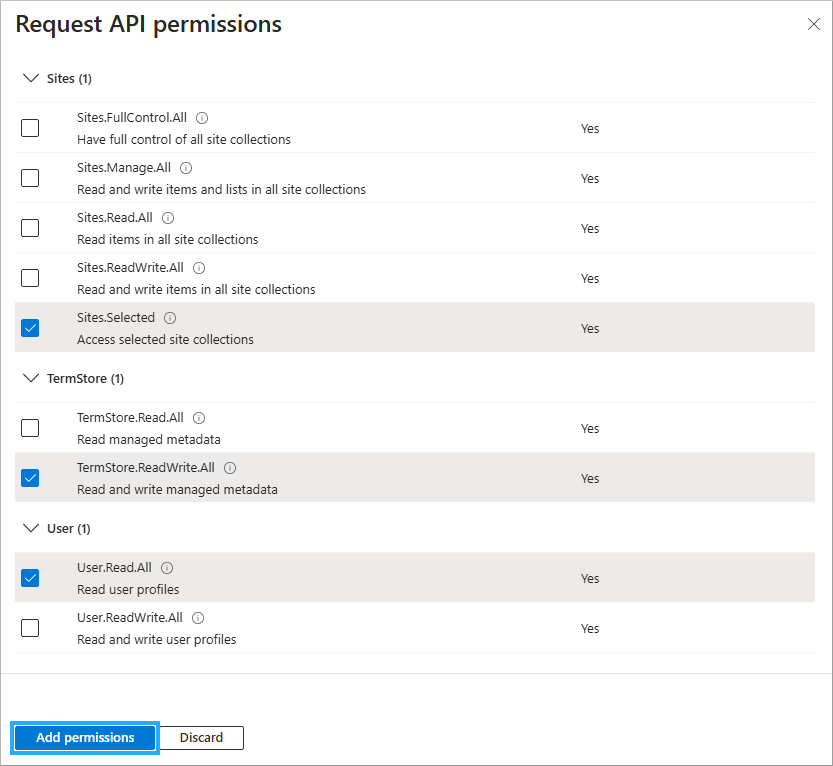
- Click on Add a permission
- Select SharePoint
- Select Application permissions
- Select
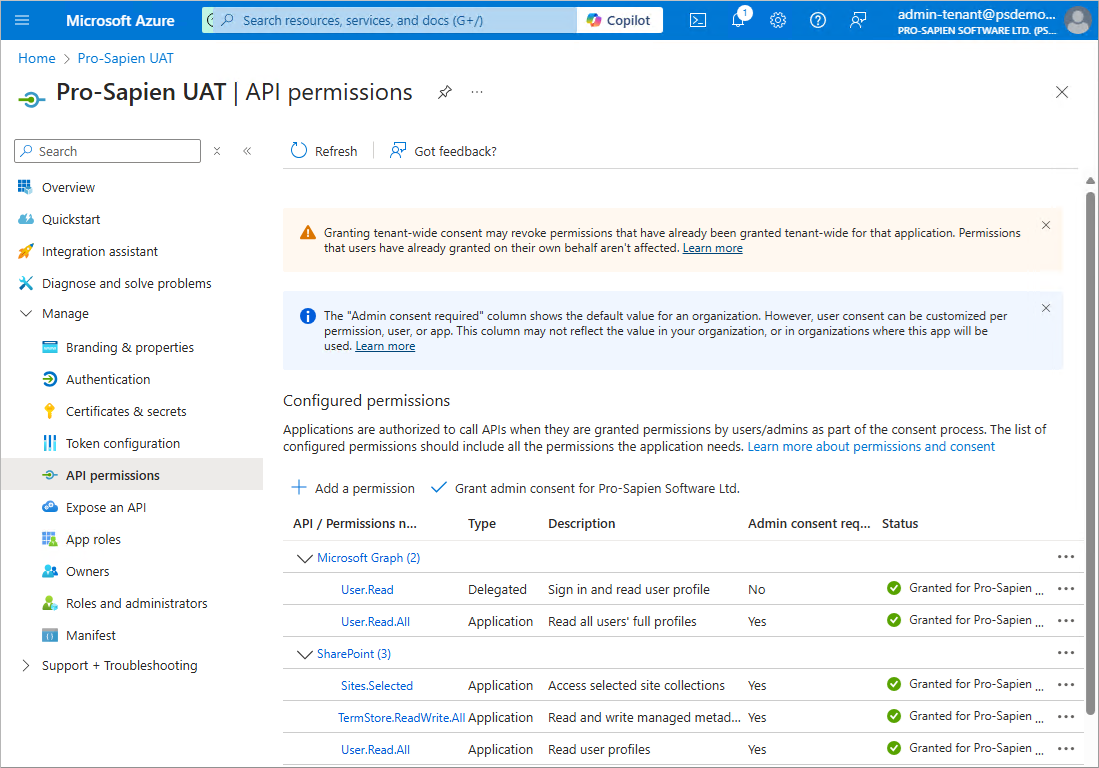
- Sites.Selected
- TermStore.ReadWrite.All
- User.Read.All
- Click on Add permissions
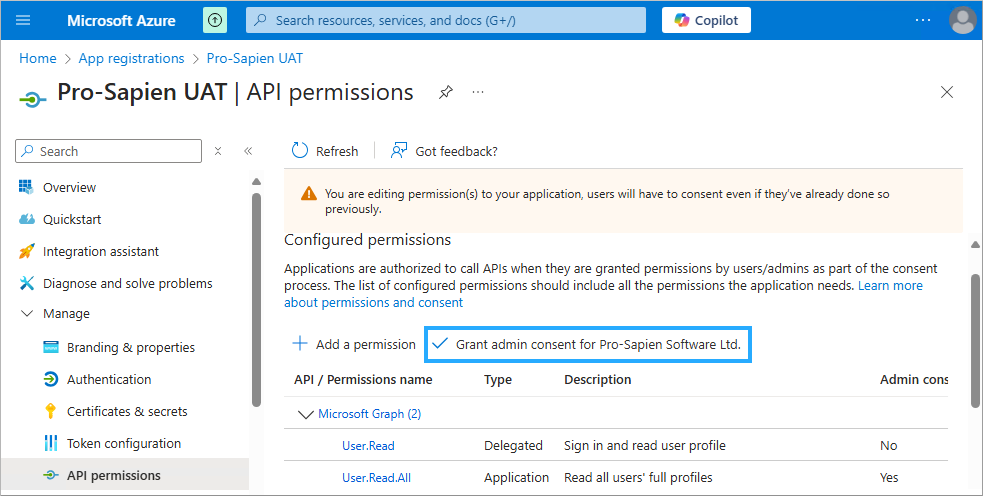
Grant admin consent
- Click on **Grant admin consent for {tenant-name} **
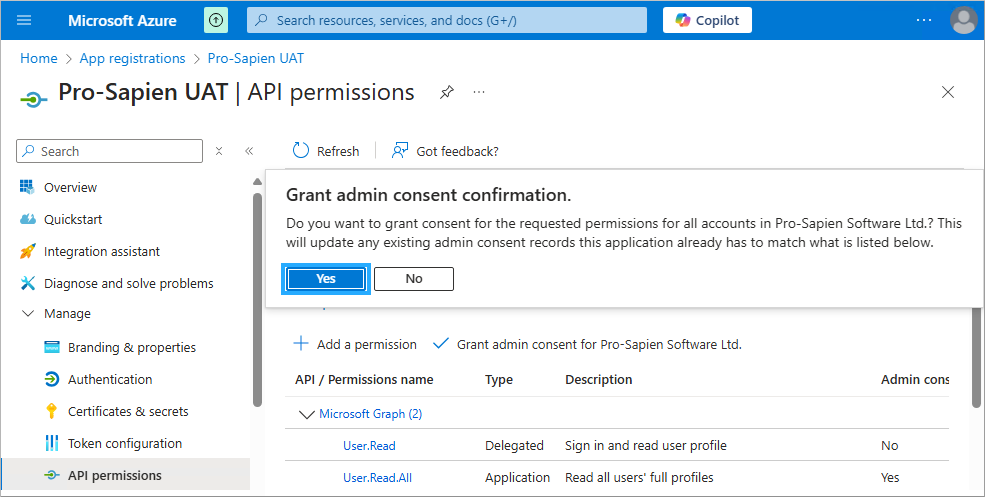
- Click on Yes
Final page example:
Before you finish
Find Object ID
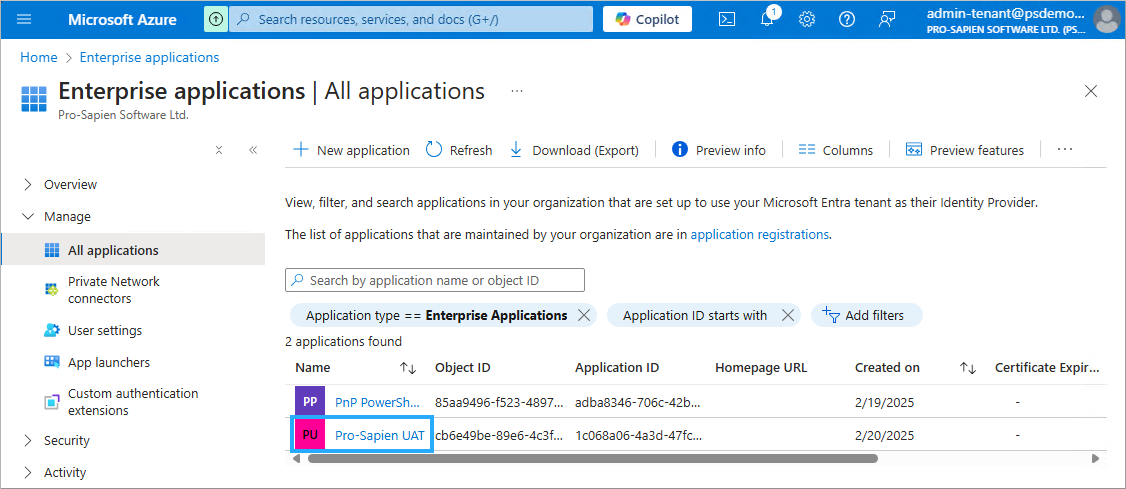
- Navigate to Azure Portal -> Microsoft Entra ID -> Enterprise applications
- Search for the {Entra-App-Name}
- Click on the azure app
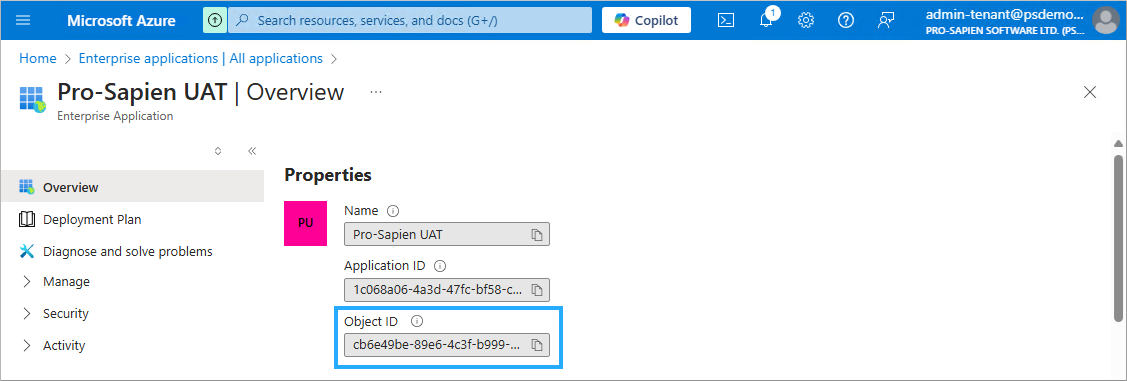
- The following details should be captured in the parameters workbook:
- Object ID {Entra-App-ObjectId}
Next steps
Now complete the following steps: